Customise the widget
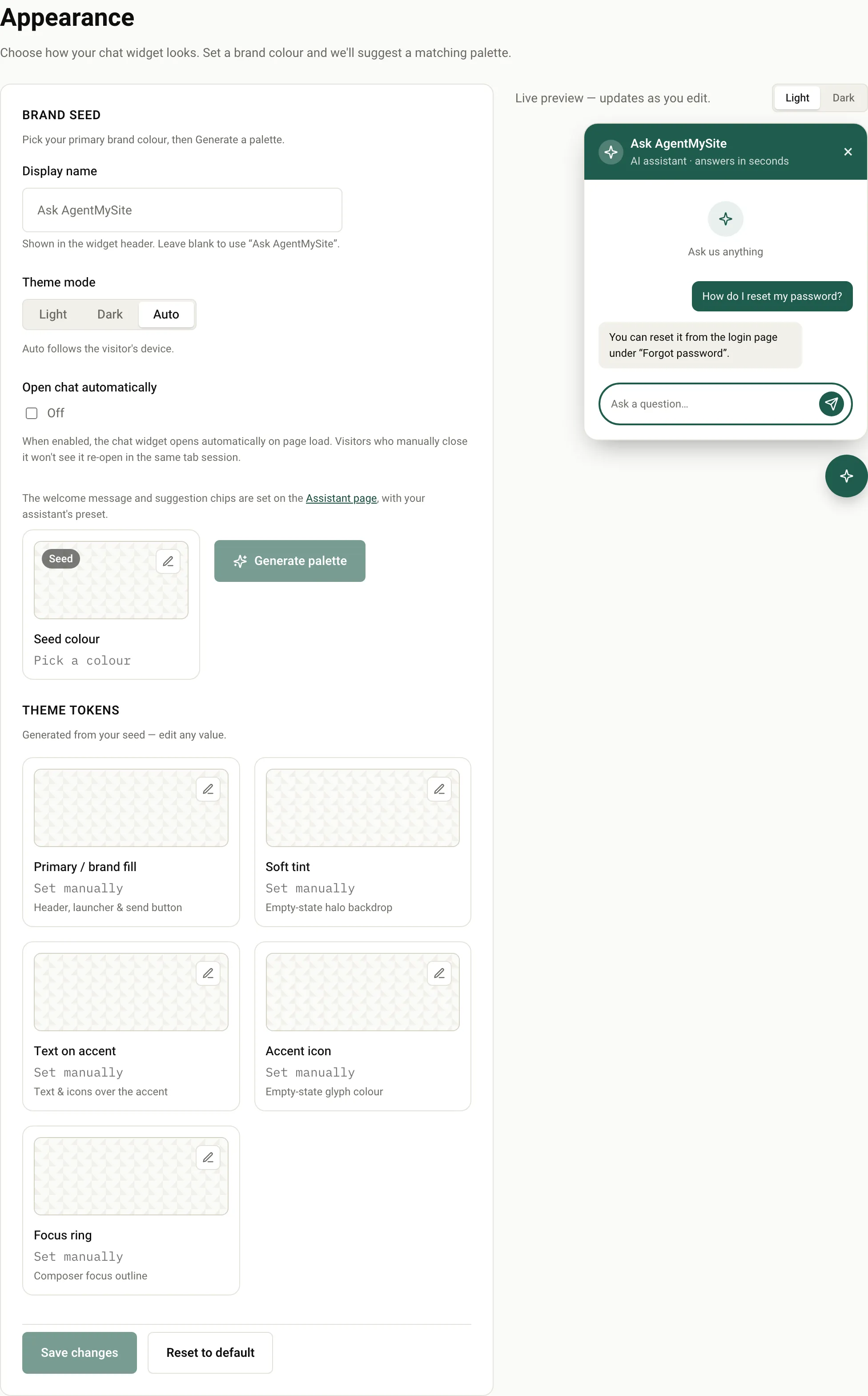
Make the chat widget match your brand. You change everything on the Appearance page, and a live preview shows the result as you edit.
Your settings are sent to the widget each time it starts, so you don’t need to change your embed snippet. Visitors see your changes the next time they load a page.
Change the appearance
Section titled “Change the appearance”-
In the sidebar, select Appearance.
-
Change any of the settings below. The preview on the right updates as you type. Use Light and Dark above the preview to check both themes.
-
Select Save changes. An Unsaved changes badge reminds you while you have edits that aren’t saved.
Settings
Section titled “Settings”| Setting | What it does | Limits and default |
|---|---|---|
| Display name | The name in the widget header. | Up to 40 characters. Blank shows “Ask AgentMySite”. |
| Theme mode | Light, Dark, or Auto. Auto follows the visitor’s device setting. | Default: Auto. |
| Open chat automatically | Opens the chat when the page loads. If a visitor closes it, it stays closed for the rest of their browser tab session. | Default: Off. |
| Seed colour | Your main brand colour, used to generate a matching palette. |
Welcome message and suggestion chips
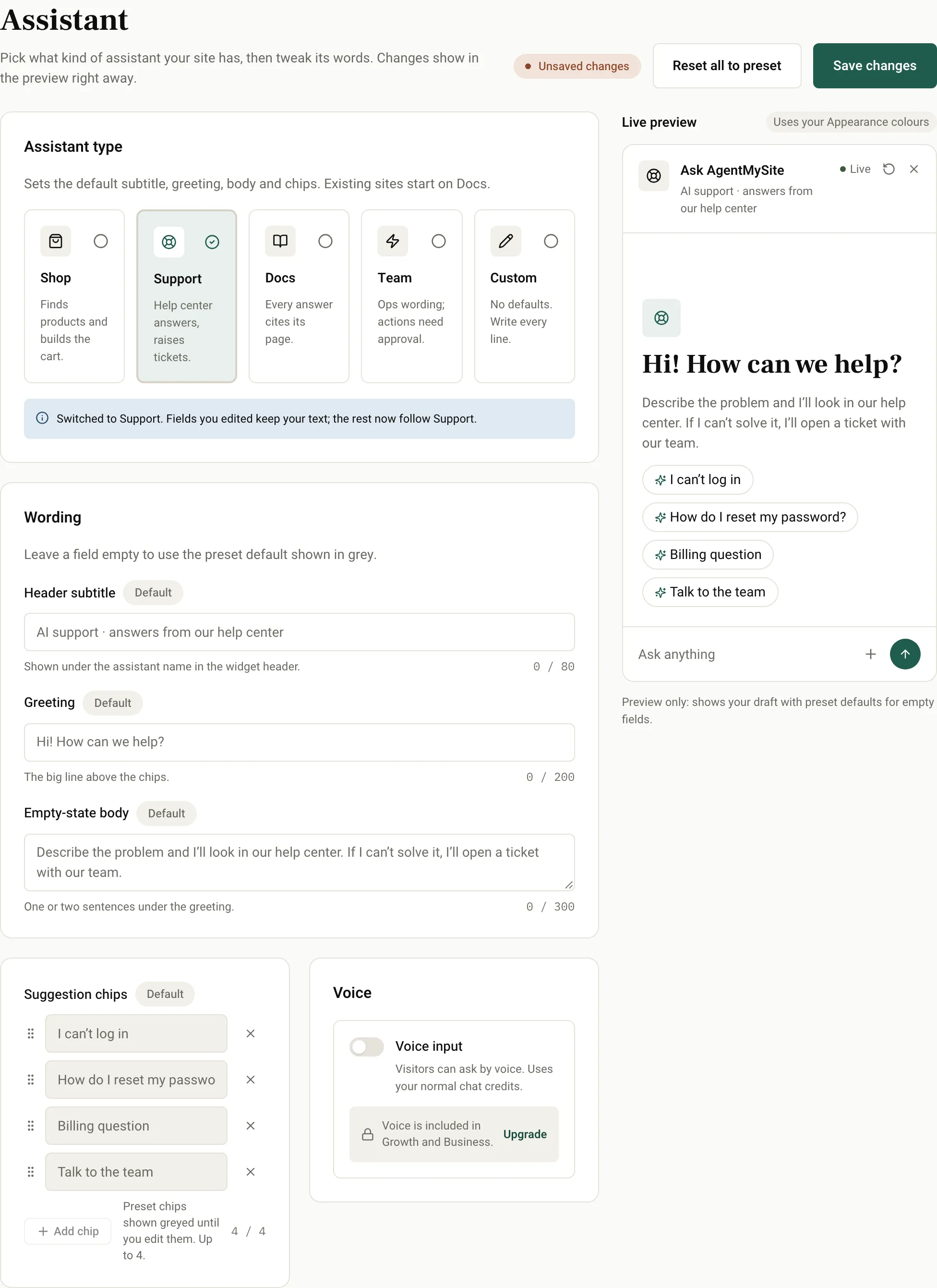
Section titled “Welcome message and suggestion chips”The welcome message, the line under it and the suggestion chips visitors can tap are set on the Assistant page, not on Appearance. Each assistant preset (Shop, Support, Docs, Team or Custom) comes with its own default wording, and you can replace any of it:
| Setting | Limits and default |
|---|---|
| Welcome message | Up to 200 characters. Blank uses the preset’s greeting; for Docs that’s “How can we help?”. |
| Suggestion chips | Up to 4 chips, 80 characters each. With none of your own, the widget shows the preset’s chips. Docs and Custom have none. |
Select Reset to preset next to a field to go back to the preset’s wording.
Set your brand colours
Section titled “Set your brand colours”-
Under Brand seed, set Seed colour to your main brand colour.
-
Select Generate palette. AgentMySite suggests a value for each theme token.
-
Review the values under Theme tokens and change any you like.
-
Select Save changes.
The theme tokens are:
| Token | Used for |
|---|---|
| Primary / brand fill | Header, launcher and send button |
| Soft tint | The backdrop behind the empty-state icon |
| Text on accent | Text and icons over the brand fill |
| Accent icon | The empty-state icon |
| Focus ring | The outline around the message box when it’s selected |
If a text colour is hard to read on the brand fill, you see Low contrast on the accent fill — may be hard to read. Choose a lighter or darker value until the warning goes away.
To generate again from a new seed colour, select Regenerate palette. This replaces your current token values.
If the palette assistant is unavailable, you can still type token values by hand.
Reset to the default look
Section titled “Reset to the default look”Select Reset to default, then Reset. This clears your custom palette and restores the default theme.
Change where the widget can run
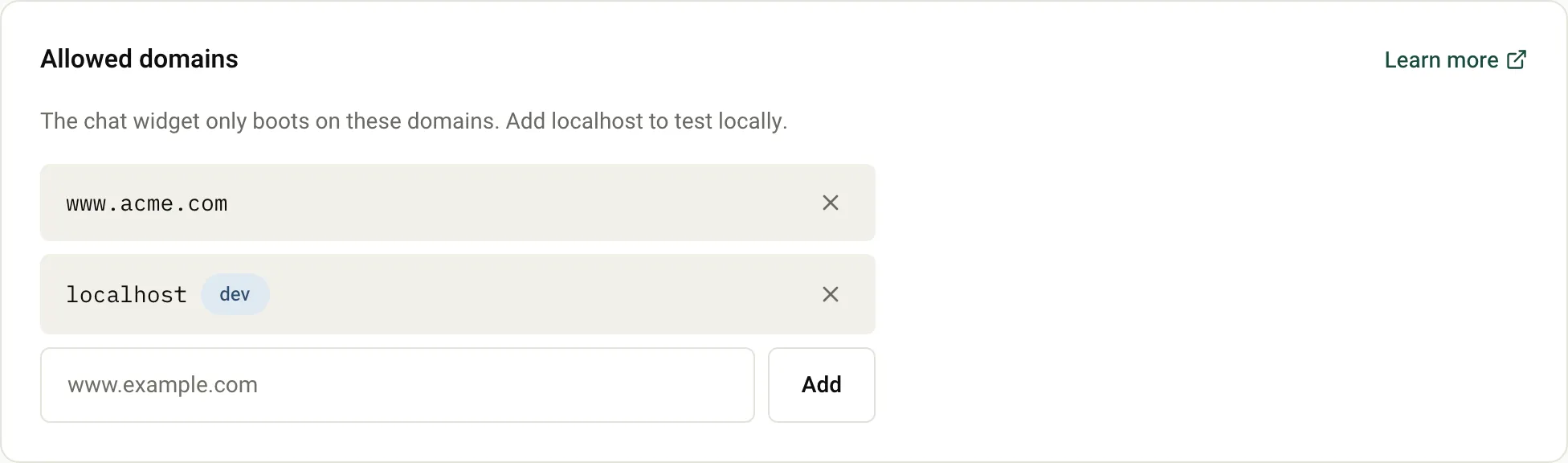
Section titled “Change where the widget can run”The domains the widget runs on are managed separately, in Site Settings > Allowed domains. Add or remove hostnames there; changes apply the next time a page loads the widget.
Next steps
Section titled “Next steps”- Install the widget
- Widget JavaScript API: for developers, including single-page apps.
Was this page helpful?
Thanks for the feedback.